 TechOffice
Samsung Galaxy Phones Now Display Real-Time Network Speed in Status Bar
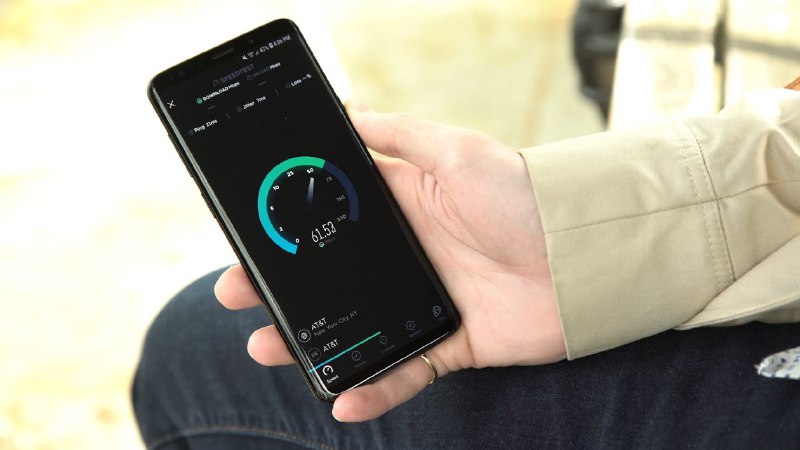
Galaxy Phones Can Finally Display Network Speed in Status Bar
In a significant update for Samsung Galaxy users, the company has introduced a long-awaited feature that allows real-time network speed monitoring directly in the status bar. This enhancement brings transparency to users' mobile data experience, allowing them to monitor their connection quality at a glance without relying on third-party applications.
The Evolution of Network Monitoring on Samsung Devices
For years, Samsung Galaxy users have been requesting the ability to display real-time network speed in the status bar—a feature that has been available on many competing Android devices. Previously, users had to rely on third-party applications or dig through settings to check their current network performance.
This limitation has been a point of frustration for many tech-savvy users who wanted to monitor their connection quality, especially when experiencing slow mobile data speeds. The ability to see network speed directly in the status bar provides immediate feedback on connection performance without needing to open additional applications or navigate through settings menus.
How to Enable Network Speed Display on Your Galaxy Device
Enabling the network speed display on your Samsung Galaxy device is straightforward. Here's a step-by-step guide:
- Open the Settings app on your Galaxy device
- Scroll down and tap on Connections
- Select Mobile networks
- Tap on Mobile data usage
- Look for the Show network speed option and toggle it on
- Return to your home screen, and you should now see your current network speed in the status bar
Note that the exact menu path might vary slightly depending on your specific Galaxy model and the version of One UI you're running. Some devices might require a software update to access this feature.
Understanding the Network Speed Display
Once enabled, the network speed display will show your current upload and download speeds in the status bar, typically in Mbps (megabits per second). The indicator updates in real-time, providing a dynamic view of your network performance.
The feature supports all types of mobile connections, including 4G LTE, 5G, and even Wi-Fi when connected to a wireless network. This comprehensive coverage ensures users can monitor their connection quality regardless of how they're accessing the internet.
Benefits of Having Network Speed in the Status Bar
The addition of network speed to the status bar offers several advantages for Galaxy users:
- Real-time monitoring: Users can instantly see their network performance without opening additional apps
- Connection troubleshooting: When experiencing slow speeds, users can quickly determine if the issue is with their device or the network
- Network quality awareness: Users can identify when they're on a congested network or when their device has switched to a slower connection type
- Performance optimization: By monitoring network conditions, users can make informed decisions about when to perform data-intensive tasks
Compatibility and Availability
This feature is gradually rolling out to Galaxy devices through software updates. While Samsung hasn't provided an official list of compatible models, it appears to be available on most recent Galaxy devices running One UI 4.0 or later. This includes:
| Device Category | Examples | Likelihood of Support |
|---|---|---|
| Flagship Models (2021-2023) | Galaxy S21, S22, S23 series | High |
| Mid-Range Models (2022-2023) | Galaxy A52, A53, A73 | Medium to High |
| Older Flagship Models | Galaxy S20, Note 20 series | Medium |
| Entry-Level Models | Galaxy A32, A42, etc. | Low to Medium |
If your device hasn't received this feature yet, it's likely that Samsung is preparing a software update that will include it. Users are encouraged to keep their devices updated to the latest version of One UI to gain access to this and other new features.
How Network Speed Monitoring Works
The network speed monitoring feature works by continuously measuring the data throughput between your device and the network. It calculates both upload and download speeds by tracking the amount of data transferred over specific time intervals.
For mobile connections, the feature considers the signal strength, network type (4G LTE, 5G, etc.), and current network congestion to provide an accurate representation of your connection quality. The speed indicator updates in real-time, typically showing an average speed over a short period rather than instantaneous measurements, which can fluctuate rapidly.
Comparing Samsung's Implementation with Competitors
Several Android manufacturers have offered network speed in the status bar for years. Samsung's implementation follows industry best practices while adding some unique touches:
| Manufacturer | Implementation | Unique Features |
|---|---|---|
| Samsung | Toggle in Mobile Data settings | Integrated with One UI design, shows both upload and download |
| Developer options | More technical information available | |
| OnePlus | Quick settings toggle | Easier access from notification panel |
| Xiaomi | MIUI security app | Detailed network statistics and history |
User Experience and Feedback
Early adopters of this feature have expressed positive feedback, particularly appreciating the convenience of having network speed information readily available. Many users have noted that this feature helps them identify network issues more quickly and make better decisions about when to use data-intensive applications.
Some power users have requested additional features, such as the ability to customize the display format (e.g., switching between Mbps and MB/s) or to set alerts when network speed drops below certain thresholds. While these features aren't currently available, they may be added in future updates.
Future Possibilities and Related Features
The introduction of network speed in the status bar opens the door for additional network-related features that Samsung could implement in future updates. Potential enhancements might include:
- Network quality history: A log showing network performance over time
- Signal strength indicators: More detailed information about signal quality
- Network type indicators: Clear indication of whether you're connected to 4G, 5G, etc.
- Data usage alerts: Customizable notifications when approaching data limits
- Network switching suggestions: Automatic recommendations to switch between Wi-Fi and mobile data based on performance
Conclusion
The addition of network speed display to the status bar represents a significant quality-of-life improvement for Samsung Galaxy users. This long-requested feature provides valuable information about network performance directly in the status bar, eliminating the need for third-party applications or navigating through settings menus.
As mobile networks continue to evolve with the rollout of 5G and beyond, features like network speed monitoring will become increasingly important for users who want to make the most of their connectivity. Samsung's implementation of this feature demonstrates the company's commitment to enhancing the user experience based on feedback from its customer base.
For Galaxy users who haven't yet received this feature, checking for software updates is recommended. As Samsung continues to roll out this functionality across its device lineup, more users will gain access to this convenient tool for monitoring their network performance.
This article is based on the latest information available at the time of publication. Samsung may modify the functionality or availability of the network speed display feature through future software updates.
Galaxy phones can finally display network speed in the status bar, here’s how: https://www.sammobile.com/news/galaxy-phones-display-network-speed-status-bar-how-to/?utm_source=telegram Galaxy phones can finally display network speed in the status bar, here’s how: https://www.sammobile.com/news/galaxy-phones-display-network-speed-status-bar-how-to/?utm_source=telegram


